Getting started with Roadie
Getting started · 4 min read ·
The Onboarding guide walks you through your channel basics, the Stage and your connectors, one step at a time, and ticks each step off when Roadie sees it working.
When you subscribe, Roadie opens Onboarding: a short guide that sets up what you pick and skips what you don't. Everything in it is optional. Do it now, later, or a bit at a time.
Pick what to hear about
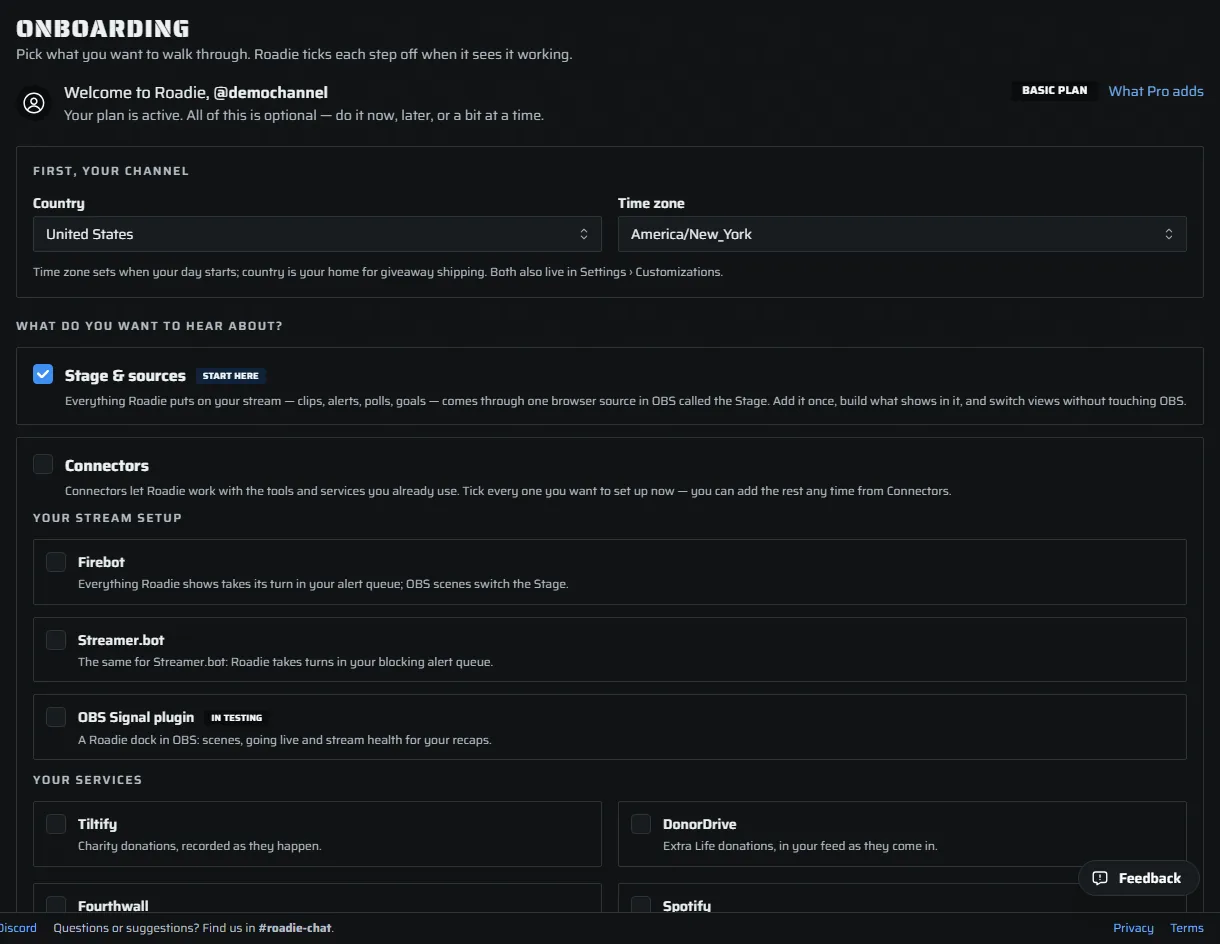
The guide opens on one page with three parts.
- First, your channel. Pick the Country you stream from and your Time zone. Roadie fills both in from your browser. The time zone decides when your day starts. The country is your home for giveaway shipping. Both also live in Settings › Customizations, and a change in either place shows in the other.
- What do you want to hear about? Tick Stage & sources to set up what Roadie shows in OBS. Tick Connectors to set up the tools and services you already use.
- Your connections. Under Connectors, tick each one you use: Firebot, Streamer.bot, the OBS Signal plugin, Tiltify, DonorDrive, Fourthwall, Spotify, YouTube or Discord. Most streamers use one bot; some use two. Tick only what you have.
Press Start. The button counts the steps for what you ticked. Your country and time zone save when you press it.
How the steps work
Each step says what the thing is, then what to do, with the real control right there: a Copy button, a link code box, a Connect button. Under the control, a line shows what Roadie can see. It waits with three dots, then turns green when Roadie sees the thing working: OBS opening your Stage, a bot linking, a service connecting. You never have to wait for it. Next step always works, and the check keeps watching.
The list on the left shows every step: done, the one you're on, still to do, or skipped. Click any step to go to it. Change topics takes you back to the first page without losing anything.
Skip, come back, finish
- Skip this step moves on and marks the step skipped, so it stays on your list.
- Skip for now leaves the guide for the Live Dashboard. Your picks and your place are kept, on the server, so the guide opens where you left off on any PC.
- Mark as complete ends onboarding. It is on every screen.
Until you mark it complete, Onboarding sits at the top of Backstage in the menu with how many steps are left. If your Stage still isn't set up, the Live Dashboard also shows one line with Resume onboarding. Close it with × and it stays closed.

The finish
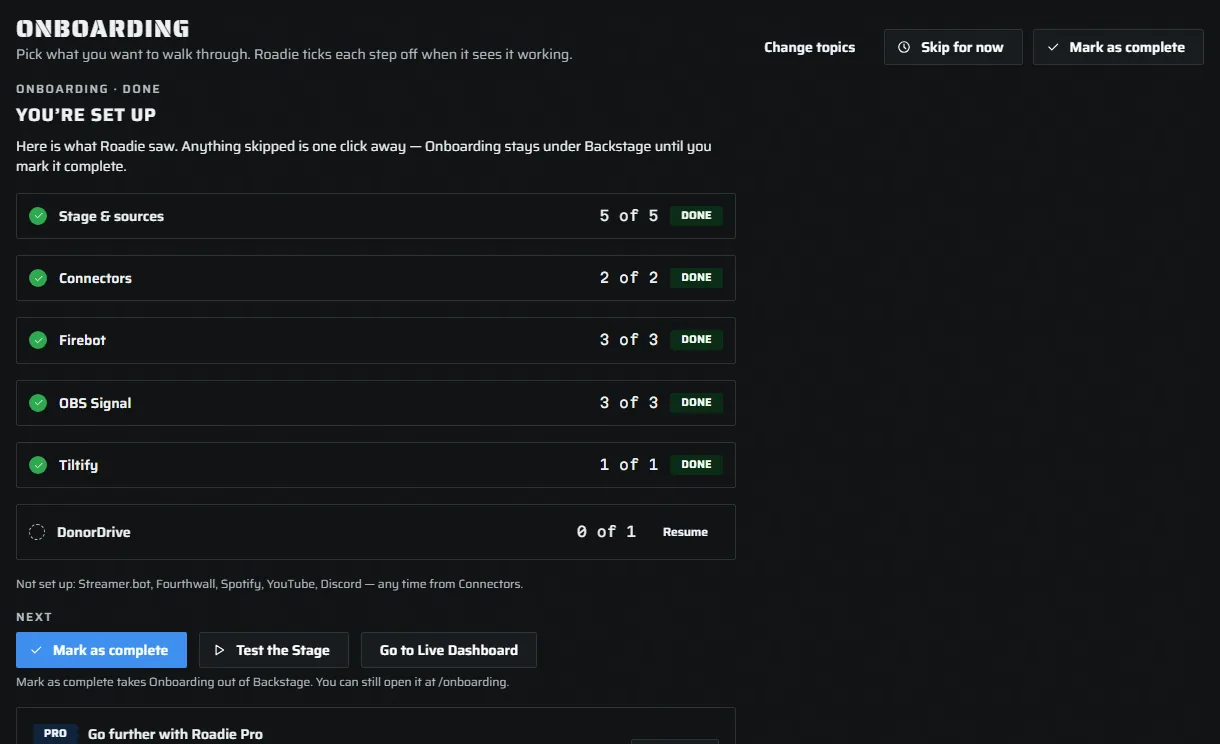
The last screen shows what Roadie saw, one row for the Stage and one for each connection, with Resume beside anything skipped. It names any connection you didn't pick, so you know where to find it later. Press Mark as complete to take Onboarding out of the menu. You can always open it again at dashboard.roadie.gg/onboarding.
Who sees it
Onboarding is for the channel owner. Your mods use Roadie free, and they never see the guide.