Connect Streamer.bot
Connectors · 2 min read ·
Import Roadie's Streamer.bot package, put Roadie — Play Clip in your alerts' blocking queue, and link with the code the connector logs.
Roadie's Streamer.bot package is a set of actions Streamer.bot runs. Once it is linked:
- Everything Roadie shows (clips, alerts, trivia, polls) waits its turn in the same blocking queue as your alerts.
- An OBS scene change switches the Stage to the view you matched to it.
Roadie never changes your existing actions. The Onboarding guide walks you through this when you tick Streamer.bot; the same steps are on Connectors › Streamer.bot.
Install
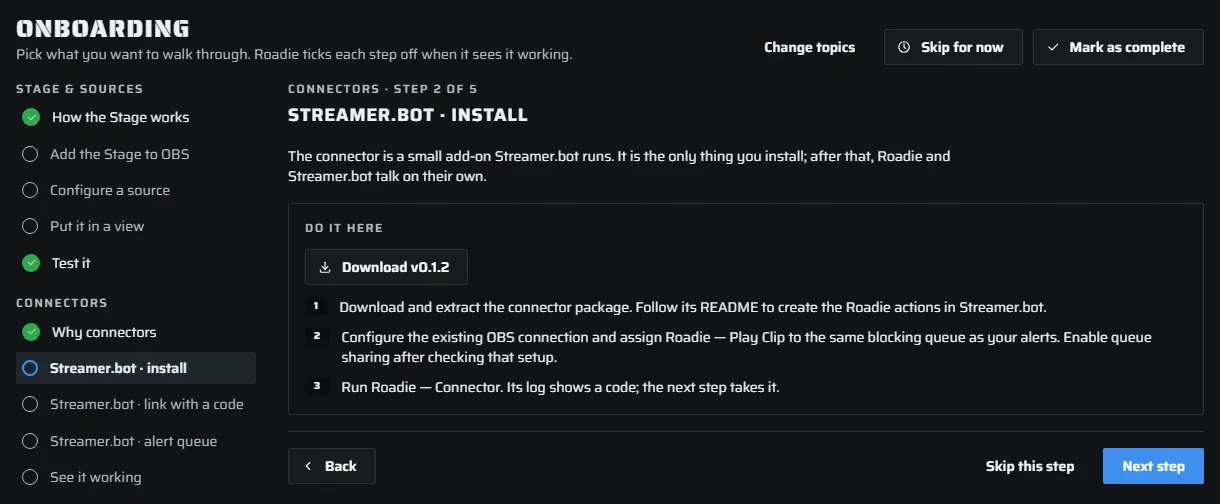
- Press Download in the guide to get the connector package, and extract it.
- Follow its README to import the Roadie actions into Streamer.bot.
- Check Streamer.bot's own OBS connection is set up. Roadie uses it for scene changes.
Link with a code
Run the Roadie — Connector action. It writes a code to Streamer.bot's log. In the guide, type the code in Code and press Link. The step turns green when Roadie sees Streamer.bot linked.
The alert queue
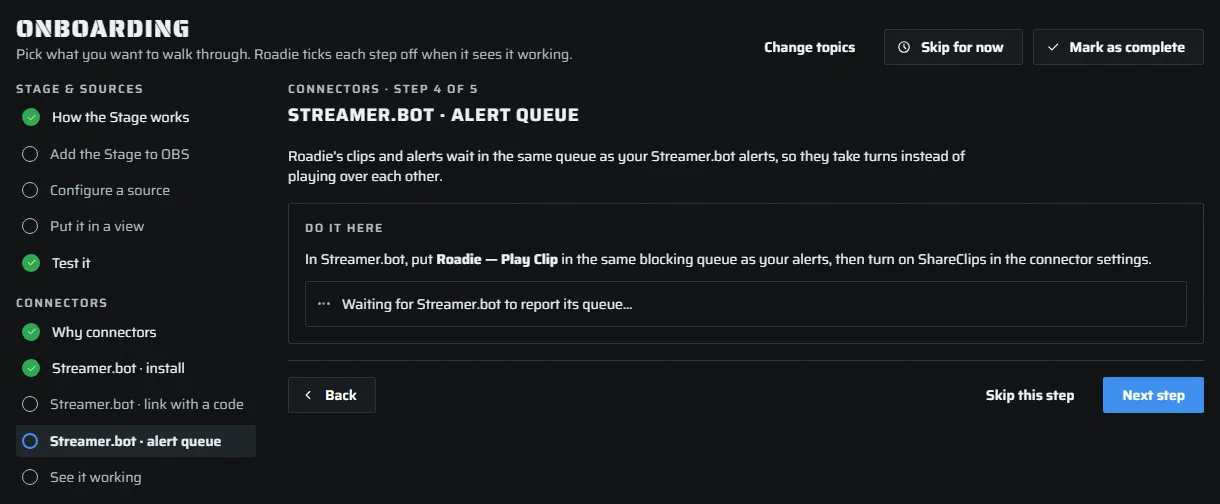
Open the Roadie — Play Clip action and set its queue to the same blocking queue your alerts use. Then turn on ShareClips in the connector settings. Streamer.bot reports the queue to Roadie, and the step turns green.
Two bots: choose which runs the queue
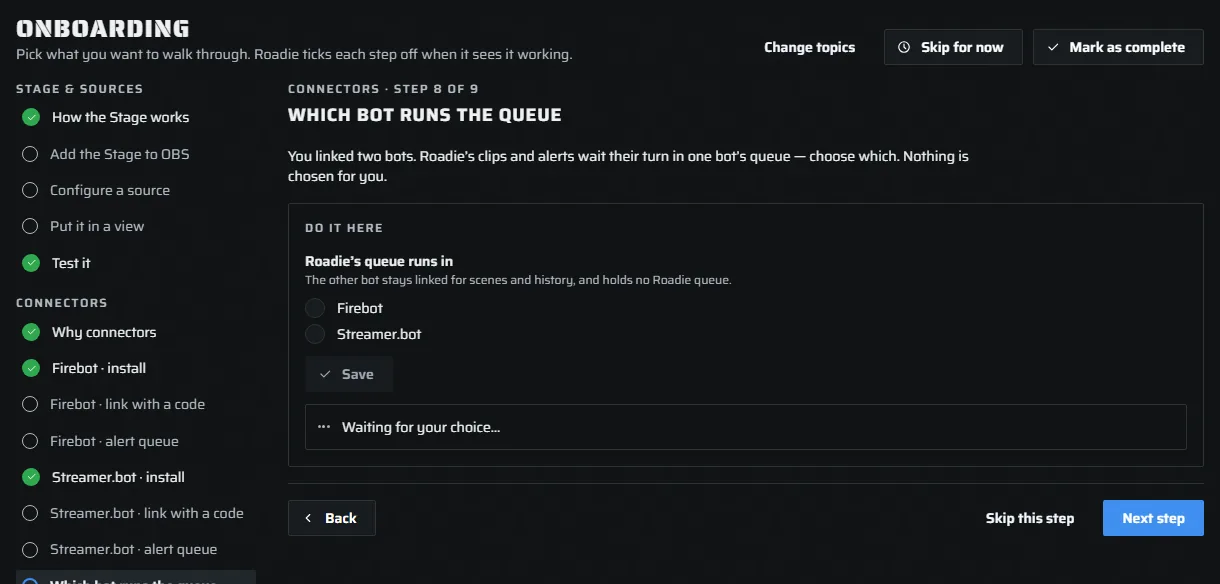
If you run Firebot as well, Roadie's queue runs in one of them, and you choose which. Nothing is chosen for you. The guide asks once both are ticked. The other bot stays linked for scenes and history and holds no Roadie queue. For Streamer.bot, that means turning ShareClips off.
See it working
Switch scenes in OBS. Streamer.bot tells Roadie, and the Stage follows. The guide's last connector step turns green on the first scene change Roadie hears.