How OBS connectors keep Stage views and alerts in sync
Connectors · 4 min read ·
Choose an OBS connector, map scenes to Stage views, and let your bot queue give Roadie clips their turn alongside alerts.
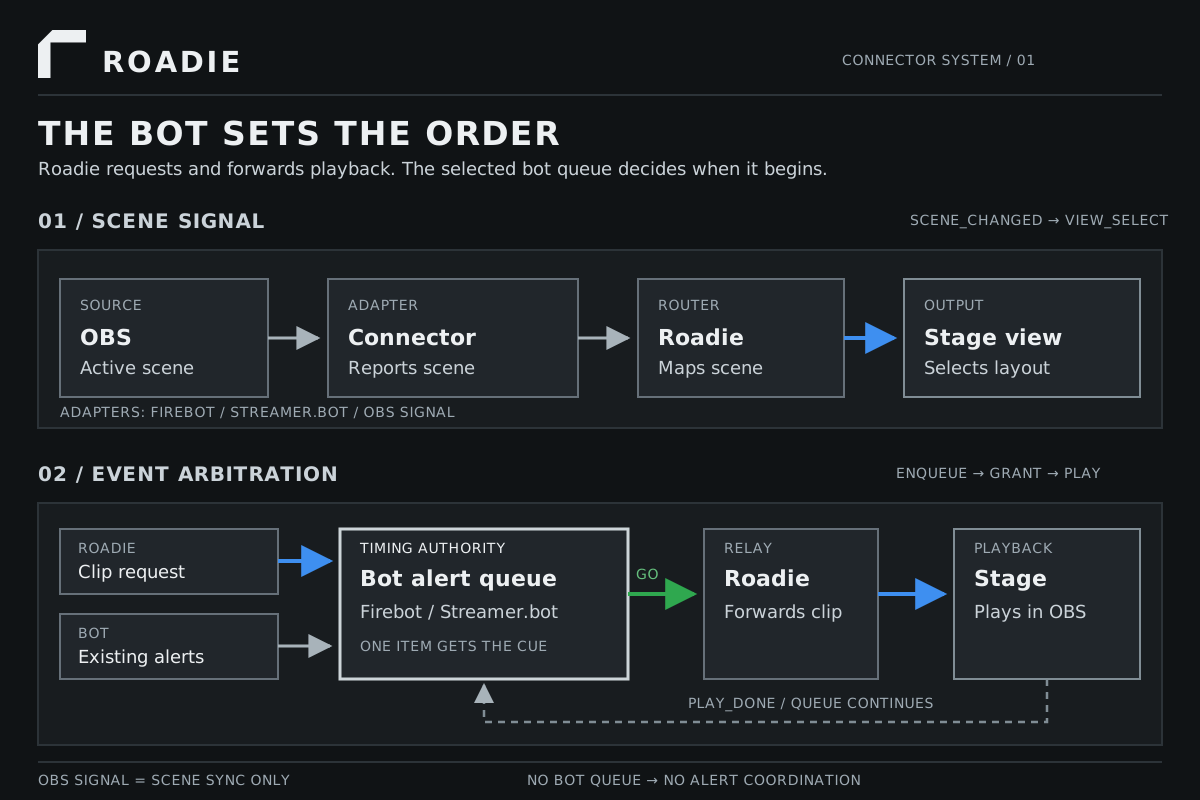
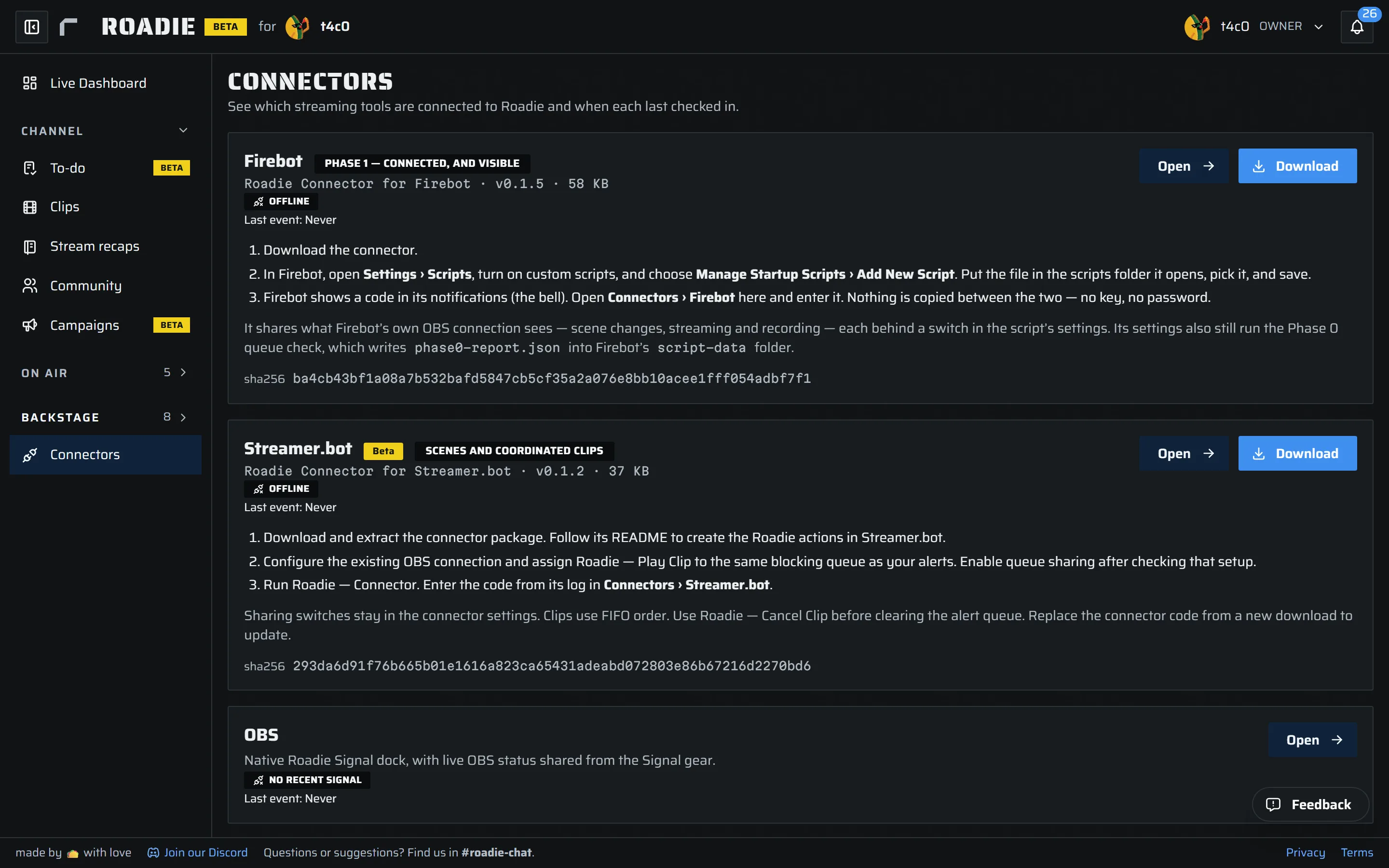
An OBS connector tells Roadie which OBS scene is active. Roadie selects the Stage view you mapped to that scene. If you use Firebot or Streamer.bot, its queue can also decide when a Roadie clip plays alongside your bot's alerts.
The bot is the arbiter of playback order. Roadie puts a requested clip into the queue you chose, waits for the bot to say it is the clip's turn, and forwards playback to the Stage. When the clip finishes, Roadie tells the bot so the queue can continue.
Which connector should I use?
| Connector | Follows OBS scenes | Coordinates Roadie clips with bot alerts |
|---|---|---|
| Firebot | Through Firebot's OBS connection | Yes, when you choose a Firebot effect queue for Roadie clips |
| Streamer.bot | Through Streamer.bot's OBS connection | Yes, when its Roadie Play Clip action uses a blocking alert queue |
| OBS Signal | Directly from OBS | No. OBS Signal has no bot queue |
OBS Signal is enough if you only want scene changes to select Stage views. Firebot or Streamer.bot adds queue coordination when you also want Roadie clips to wait behind alerts. Roadie receives events such as ad breaks through its own integrations; the bot controls the order of items placed in its queue.
Map scenes to Stage views
- Open Connectors and confirm your OBS connector is online.
- Open Stage, then open the view dropdown. Hover or focus a view to inspect its scene mappings; click its name to select it in the editor.
- Filter the scene list and select the scenes that should activate that view. A scene can belong to only one view in each Stage. Desktop and Mobile have independent mappings.
- Save your changes and switch scenes in OBS to check the result.
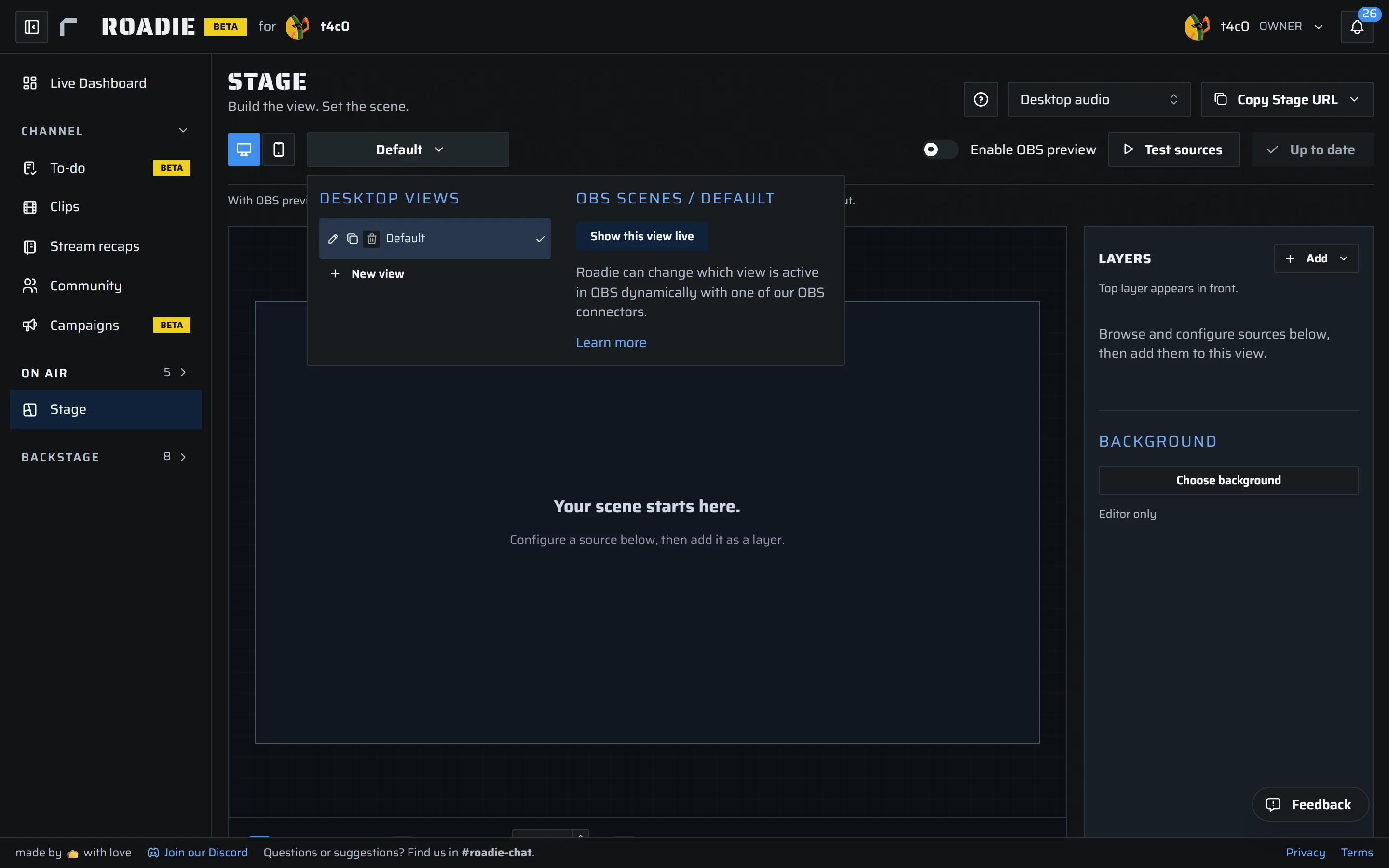
Duplicating a view copies its layers and settings, but not its scene mappings. If your connector goes offline, saved mappings remain, and you can still select views manually. Scene changes resume synchronizing when it reconnects.
If you are using the Stage trial, the mapped view follows the active scene in trial output. Your current installed Stage stays authoritative until you enable and verify adoption.
Put Roadie clips in your alert queue
Choose a queue in Firebot or configure the Roadie Play Clip action in a blocking Streamer.bot queue. Use the queue that also handles the alerts you want Roadie clips to wait for. When a clip reaches the front, the bot signals Roadie to play it. Roadie reports when playback is complete, and the bot moves to the next queued item.
This prevents overlap among items in that queue while the connector is online. Alerts outside the queue can still overlap. A Firebot Interval queue can advance before a clip ends if its interval is too short; choose a mode that waits for the clip. If clip sharing is off or the connector is offline, Roadie's own clip queue may keep playing without bot coordination. Enable clip sharing in only one bot at a time.