Using Roadie in OBS without the plugin
Connectors · 4 min read ·
The OBS plugin is Windows-only and optional. Here is what the other paths give you — the browser dock, a bot connector — and what only the plugin can do.
The Roadie OBS plugin puts Signal in OBS's Docks menu and lets Roadie see OBS itself. It runs on Windows x64 with OBS 30 or later. You do not need it to use Roadie in OBS. On a Mac, on Linux, or if you would rather not install anything, two other paths cover most of what it does.
What each path gives you
| You want | OBS plugin | Browser dock | Firebot or Streamer.bot connector |
|---|---|---|---|
| Signal inside OBS | Yes | Yes | No |
| Stage views that follow your OBS scenes | Yes | No | Yes |
| Roadie clips waiting their turn behind alerts | No | No | Yes |
| Stream health notes in your recap | Yes | No | No |
| OBS crash reports sent to Roadie for support | Yes | No | No |
| Microphone levels in Signal | Coming | No | No |
The browser dock and a bot connector work together, so you can use both at once.
The browser dock
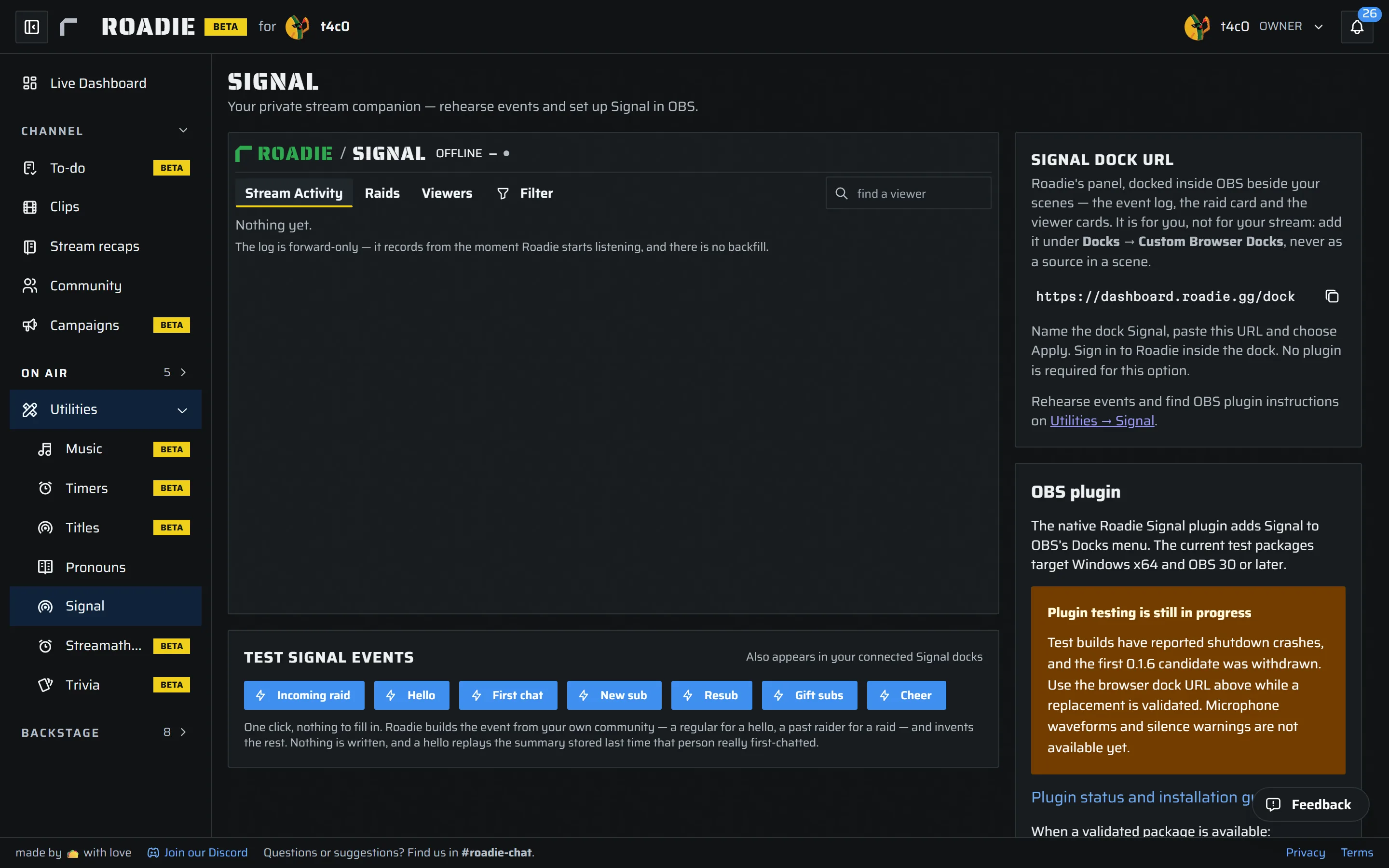
The browser dock is the same Signal you see in Roadie, added to OBS as a custom browser dock. Nothing to install.
- Open Signal and copy the dock URL.
- In OBS, choose Docks → Custom Browser Docks.
- Name it Roadie Signal, paste the URL, and select Apply.
- Sign in to Roadie inside the dock.
The browser dock cannot see OBS: it does not know your scene, whether you are streaming, or how the stream is running. That is what the plugin adds.
Following your OBS scenes with a bot
If you already run Firebot or Streamer.bot with its OBS connection set up, Roadie's connector for it reports your scene changes. Mapped Stage views then follow your scenes, and Roadie clips can wait in the bot's alert queue. See how OBS connectors keep Stage views and alerts in sync.
What only the plugin can do
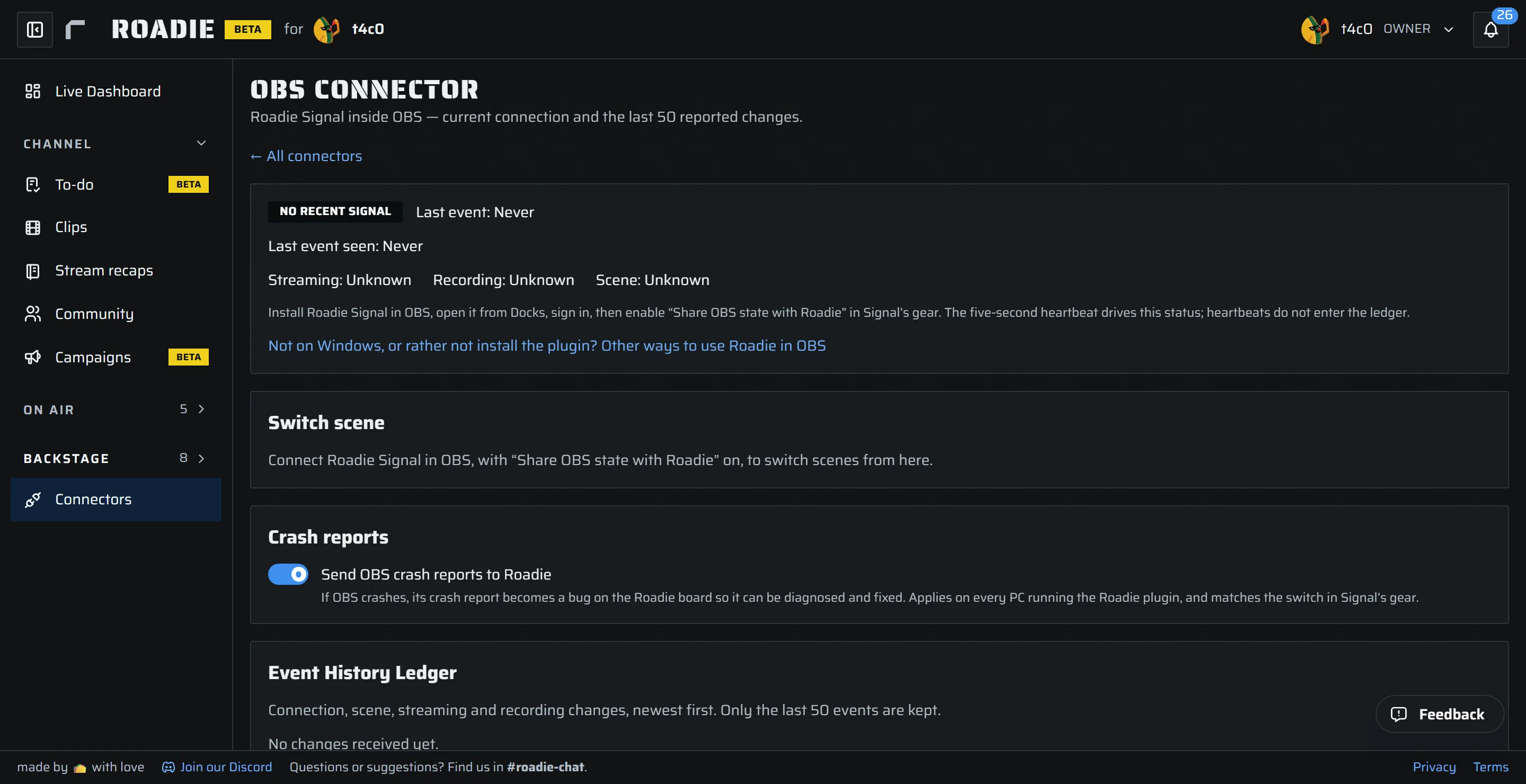
- Stream health in your recap. The plugin reads dropped, skipped and lagged frames, your bitrate and reconnects from OBS while you stream. The recap shows when the stream ran rough and links each moment into the VOD. A web page cannot read these numbers from OBS.
- Crash reports. If OBS crashes, the plugin finds OBS's own crash report the next time it starts. With Send crash reports to Roadie on in Signal's gear, it sends that report to Roadie so we can see what went wrong. Paths with your Windows user name in them are removed first.
- Your microphone, by OBS's name for it. A browser dock can only reach a microphone if OBS is started with extra launch options, and those options give every browser source in OBS silent microphone access. The plugin reads your OBS audio source directly instead, with no launch options needed.
If you run the plugin and a bot connector
Both can report your OBS scenes. When the plugin has a fresh reading, the Stage uses it, and it falls back to the bot's when the plugin goes quiet. A bot connector is still the only way to put Roadie clips in your alert queue.